 SwitchApp
Your Premiere connection.
Let your assistant read the sequence you choose and send edits to Premiere for your review.
The Premiere plugin is free. Sign in with your existing SwitchApp account. Paid AI requests use SwitchApp’s existing credits and billing after you approve the displayed cost; there is no separate plugin license fee.
Reading and editing your sequence through the connector costs nothing, so the edits your own assistant sends are free; anything else it asks SwitchApp to make, such as a video, is charged as usual. Inside Premiere, only the panel’s own chat is charged: 1 to 6 tokens a turn, shown next to the model you pick. A long request can take up to 31 turns, each one charged, and the panel keeps a running total.

SwitchApp for Premiere
Version 0.1.48 · Premiere Pro 25.6 or newer on macOS · free
- Open the downloaded file on the editing Mac. Creative Cloud installs the panel (the Creative Cloud desktop app has to be on the Mac). The connection uses SwitchApp directly and needs no separate helper.
- Start Premiere, or restart it if it was open. The panel is under the Window menu, UXP Plugins, SwitchApp for Premiere.
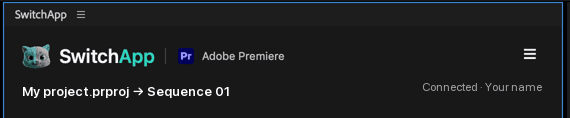
- Open the panel menu (three lines, top right), choose Account and MCP connections, then Sign in. Open your project and pick the sequence; make a duplicate for the first edit.
- Once signed in with a sequence open, the panel connects to SwitchApp by itself; Connect to SwitchApp in the panel does the same. While sharing is on, SwitchApp can read that sequence’s metadata. Footage leaves the Mac only as still frames your assistant asks to see, cuts you export to your library, and the shot descriptions or picture and sound analysis you start; What leaves your Mac, below, has the details.
- Ask the panel in plain words: “remove the clips outside the in and out”, “trim the third clip to end at 12 seconds”, “add a cross dissolve at the start of the shot on V1”, “transcribe the interview”, “export the cut to my Switch library”.
- Switch does the first move, Premiere applies it, and it keeps going until the ask is done, up to 30 moves in one go; each shows in the chat as it lands. If a real choice would change the result it asks once, then acts. Premiere Undo reverses any move; Stop ends a request.
- To use your own ChatGPT or Claude, connect it to SwitchApp with the same account. Ask it to list Premiere connections and read your timeline before requesting an edit. It sees the same timeline.
- Always allow is on each time the panel connects, so your assistant’s edits run as they arrive. To review each one first, switch it off on the Account and MCP connections page; then preview each request in Premiere and apply it. Your assistant receives success only after the panel verifies the result.
How to use it
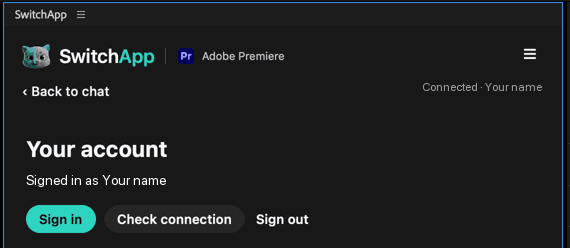
If the panel is missing after a restart, open it again from the Window menu as in step 2. If it shows Connected but your assistant says Premiere is offline: press the connection button on the Account page once; it reconnects within 30 seconds. “Sign in expired”: Account, Sign in. A refused edit says why; nothing changed and nothing is charged for it.
Editing Macs
No Macs are sharing a sequence. Open the panel in Premiere to connect.
What leaves your Mac
While sharing, SwitchApp receives the project name and path, selected sequence clips and timing, edit requests, and the whole project’s bin and media inventory, including items outside this sequence. Your connected assistant can read that metadata. Media files stay on your Mac.
Gemini picture and sound analysis needs a separate, explicit media upload approval and spending limit. This connection does not upload footage or start analysis.
Stop sharing to block new edits. An Adobe edit already running may finish. Premiere Undo remains available; read the timeline again after undoing.